function GetFetch() {
try{
//get FetchXML
var advFind=_mainWindow.$find("advFind"), iOldMode = advFind.get_fetchMode();
var sFetchXml=advFind.get_fetchXml();

//get related information
var FetchXml = sFetchXml;
var LayoutXml= FetchXml.LayoutXml;
var EntityName = FetchXml.EntityName;
var DefaultAdvFindViewId= FetchXml.DefaultAdvancedFindViewId;
var ViewId = FetchXml.QueryId;
var ViewType= FetchXml.QueryObjectType;

//your code
} catch (err) {
                txt = "There was an error on this page.\n\n";
                txt += "Error description: " + err.message + "\n\n";
                txt += "Click OK to continue.\n\n";
                alert(txt);
}

}
Showing posts with label MSCRM Javascript. Show all posts
Showing posts with label MSCRM Javascript. Show all posts
Wednesday, September 4, 2013
CRM 2011 - Get Fetch in Advanced Find form by javascript

Sunday, June 17, 2012
MS CRM 2011 - Javascript function to detect Offline/Online mode
The following example shows how to enable or disable a MS Crm Tab when an user tries to go in offline mode or in online mode. In this case i try to disable the tab that contains an Iframe with a Custom Service Calendar.
// Comment
HeadServiceCalendarInOfflineMode: Function()
{
//Check if mscrm is in online or offline mode

if(!isOnline)
{
try
{
Xrm.Page.ui.tabs.get("service_calendar_Tab").setVisible(false);
}catch(err){}
}

}
Nicola Grillo
Sunday, April 8, 2012
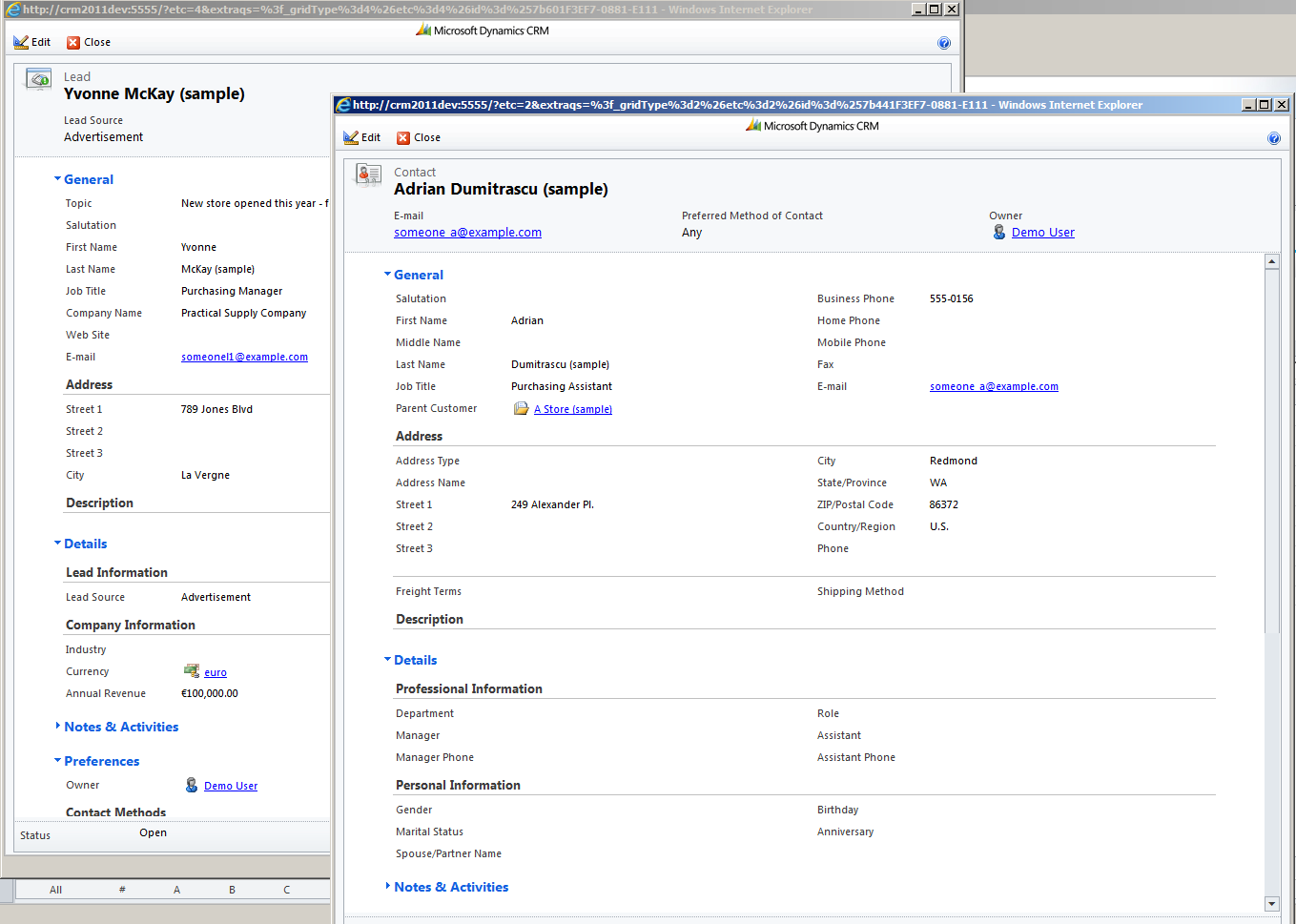
MSCRM 2011 - Microsoft Dynamics CRM Read-optimized form
MSCRM Users can choice two forms mode with the new feature included in Microsoft Dynamics CRM RU7. Edit forms are used to modify data and Read-optimized forms provide the option for users to rapidly view records using a form that is optimized to load quickly. Users can view records on forms built to open rapidly and to prevent accidental data entry. In Read-optimized form will not show :
1. Microsoft Office Ribbon
2. Releted Records
3. Content Generated by custom script or web resource.
To change the default editable forms with Read-optimized forms go in Settings > System Settings > Customization and select Read-optimized.

Microsoft dynamics CRM forms will be displayed as below :
Reference:
Nicola Grillo
Thursday, April 5, 2012
MSCRM 2011 - 3 Steps for a simple Integration Between Dynamics CRM and LinkedIn
Step 1: Copy the following code and paste in an html page.


Final Result :-)

// CommentStep 2: Create a web resource in Microsoft Dynamics CRM 2011 and select the previous html page.

Step 3: Link the new web resource in Lead Form.

Final Result :-)

Nicola Grillo
Reference:
Sunday, February 26, 2012
CRM 4.0/2011 "Access is Denied" error message in GenerateAuthenticationHeader()
Access is Denied appear when use an IP address or localhost.
The reason is that your GenerateAuthenticationHeader uses the server name. When you make a request to what is interpreted as a different domain you will get an error.You might try putting your IP address in your Internet explorer trusted sites and then change the IE options to allow cross domain requests, but the simplest solution is to just use the server name when you open Microsoft Dynamics CRM.
Nicola Grillo
The reason is that your GenerateAuthenticationHeader uses the server name. When you make a request to what is interpreted as a different domain you will get an error.You might try putting your IP address in your Internet explorer trusted sites and then change the IE options to allow cross domain requests, but the simplest solution is to just use the server name when you open Microsoft Dynamics CRM.
Nicola Grillo
Thursday, February 16, 2012
CRM 2011 : Access is Denied error message in Rest Query
This appear when you use an IP address or localhost in CRM Url. The reason is that your REST query uses the server name from the context.getServerURL function. When you make a request to what is interpreted as a different domain you will get an error.
You might try putting your IP address in your Internet explorer trusted sites and then change the IE options to allow cross domain requests, but the simplest solution is to just use the server name when you open Microsoft Dynamics CRM.
The following workaround use the application server name:
Thanks,
Nicola
You might try putting your IP address in your Internet explorer trusted sites and then change the IE options to allow cross domain requests, but the simplest solution is to just use the server name when you open Microsoft Dynamics CRM.
The following workaround use the application server name:
Nicola
Wednesday, November 9, 2011
CRM 4.0 - Javascript Tooltip Description in MSCRM 4.0
// Comment
var txt="Your TXT";
document.getElementById( "attributename" ).title=txt;
Nicola Grillo
Friday, April 15, 2011
CRM 4.0 - How to Disable IFRAME via javascript in Microsoft CRM 4.0
// Comment
crmForm.all.IFRAME_approval_workflow.src=""
Thanks,
Grillo Nicola
Subscribe to:
Posts (Atom)